





Can I Replace My Laptop Cooling Fan Myself?
A noisy or failing laptop cooling fan can quickly turn a smooth work session into a frustrating, overheating mess. The good news is that in many cases, you don’t have to replace the whole laptop or pay for an expensive repair—swapping out the fan yourself is often a realistic DIY option.
In this guide, we’ll walk through what to consider before you start, how to choose the right replacement fan and tools, the general steps to take your laptop apart safely, and how to test everything once the new laptop cooling fan is installed.
Can You Really Replace a Laptop Cooling Fan Yourself?
Yes, You can replace a laptop cooling fan yourself in many cases, especially if your laptop has a simple, removable bottom panel. When the fan sits just beneath that cover and you have a clear teardown video or step-by-step guide for your exact model, the repair is usually quite manageable. In these situations, the job often comes down to carefully removing the back cover, unplugging the old fan, installing the new one, and then reassembling everything in reverse order.
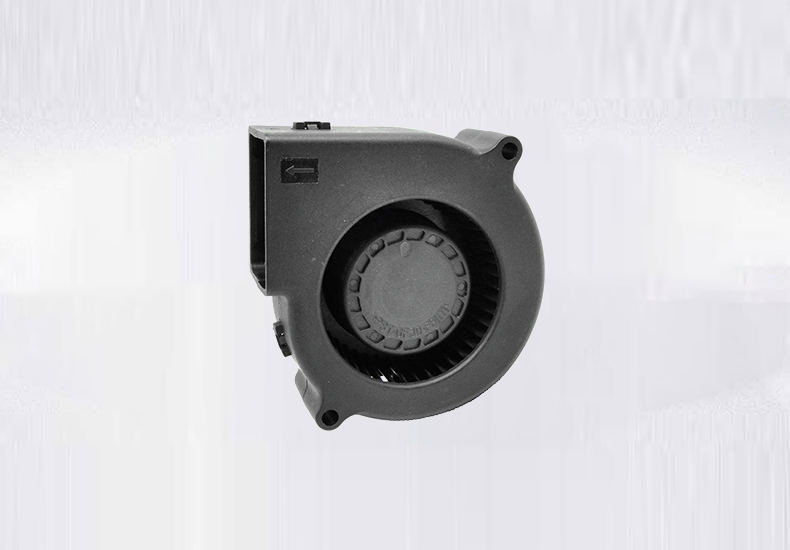
It becomes more difficult with very slim laptops, tightly packed internals, or designs that use lots of clips, adhesive, or hidden screws. Getting to the dc cooling fan in those models may require taking apart a large portion of the device, which leaves less room for mistakes. Whatever laptop you’re working on, you’ll need a few key qualities: patience, a steady hand, and the willingness to follow detailed instructions one careful step at a time.
Key Things to Check Before Replacing Your Computer Cooling Fan
1.Model & Replacement Part
Before you reach for a screwdriver, make sure you’ve chosen the correct computer cooling fan for your specific model. A good starting point is to search your laptop model + “CPU fan” or “cooling fan”, then compare the photos, connector, and mounting points with the fan already in your laptop. If you’re comfortable opening the case first, check the part number printed on the original fan and order the same model or a confirmed compatible replacement. You’ll also need to decide between an OEM laptop cooling fan, which usually offers the best fit and reliability, and third-party fans, which are often cheaper but may differ in noise level and lifespan.
2.Tools You’ll Need
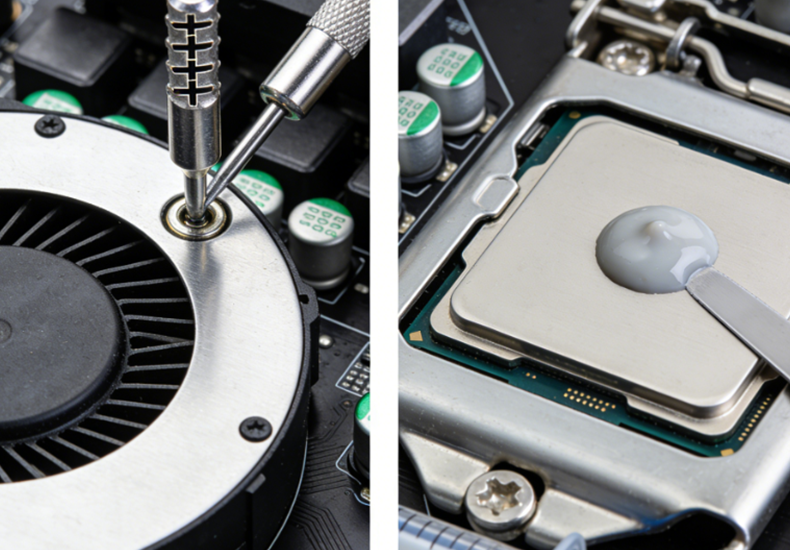
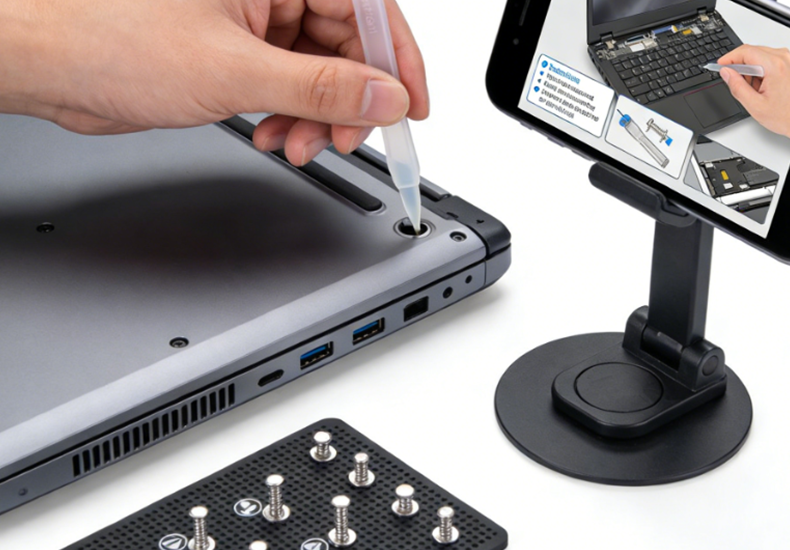
Having the right tools on hand makes replacing a laptop cooling fan much easier. At a minimum, you’ll need a precision screwdriver set (typically Phillips #00 or #000) and a plastic prying tool or spudger so you can open the case without scratching or cracking it. If you have to remove the heatsink to reach the fan, keep thermal paste, isopropyl alcohol, and a microfiber cloth nearby to clean and reapply the paste. To avoid losing tiny screws, use a magnetic mat or a few small, labeled containers so each piece goes back exactly where it came from.
3.Warranty & Risk Considerations
Before opening the laptop to replace the dc cooling fan, check whether removing the bottom cover or breaking any seals might void your warranty. If the device is still under warranty, it may be safer to contact the manufacturer or an authorized repair center first. Whatever you choose, always back up important data in case something goes wrong during the process. Replacing a computer cooling fan is a DIY job, which means you take on the risk—work slowly, stay organized, and only continue if you’re comfortable following detailed, step-by-step instructions.
General Step-by-Step: Replacing The Cooling Fan for Laptop
1.Opening the Bottom Case
First, shut down your laptop completely and unplug the charger. If the battery is removable, take it out as well. Turn the laptop over and remove all screws from the bottom cover—some may be hidden under rubber feet or stickers, so check carefully before prying. Once you’re sure every screw is out, use a plastic spudger or prying tool to gently work around the edges and release the clips. Avoid metal tools to prevent scratches or cracks. Snapping a few photos as you go will make it much easier to remember how everything fits when you reassemble.
2.Locating and Removing the Old Fan
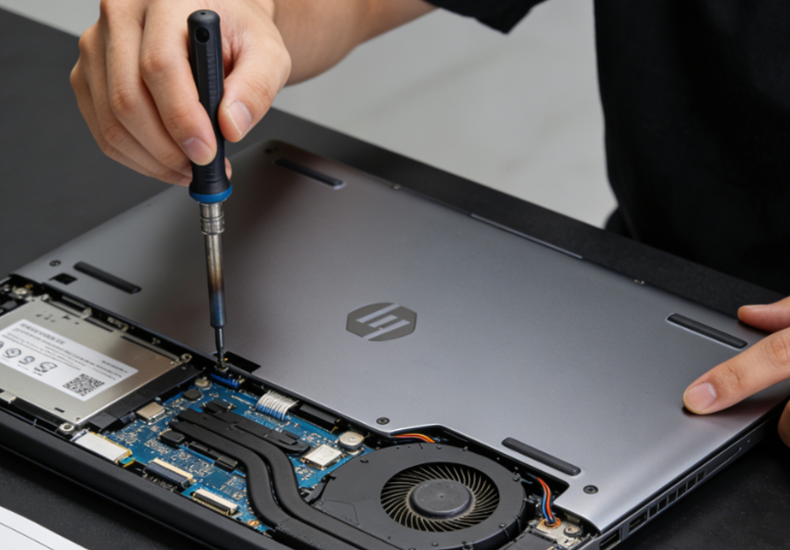
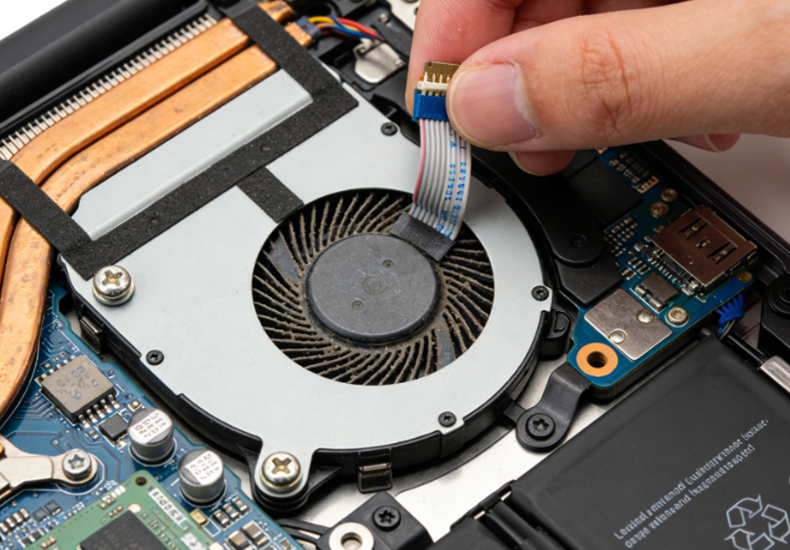
With the bottom cover off, locate the cooling fan for laptop and its heatsink assembly, usually near the side or rear vents. Carefully unplug the small fan connector from the motherboard, holding the connector itself rather than pulling on the wires. Remove the screws that secure the fan. On some laptops, you may need to slide out a drive or remove a small bracket to gain full access. Work slowly and keep track of which screws and parts came from where.
3.Swapping in the New Fan
Once the old dc co0ling fan is loose, lift it out gently. Set the new cooling fan for laptop in the same position, matching its orientation and screw holes. Fasten it with the original screws, snug but not over-tightened. Then reconnect the fan cable to the motherboard, pressing it straight in so it seats properly without bending pins or stressing the connector.
4.(Optional) Reapplying Thermal Paste
If you removed the heatsink to reach the fan, you’ll need to replace the thermal paste. Lift the heatsink off carefully, then clean the old paste from the CPU/GPU and the heatsink contact surface using isopropyl alcohol and a lint-free cloth or paper. Once both surfaces are clean and dry, apply a small pea-sized dot of new thermal paste to the center of the chip. Reinstall the heatsink and tighten its screws evenly—ideally in a cross pattern—so it sits flat and maintains good contact.
5.Reassembly
With the new cooling fan for laptop and heatsink (if removed) secured, you can put the laptop back together. Align the bottom cover and press around the edges until all clips snap into place. Reinstall all screws in their original locations, using your photos as a guide if needed. Reinsert the battery if you removed it earlier. Finally, power on the laptop and listen for the fan to spin up, checking that everything feels solid and there are no unusual noises or loose parts.
Testing the New Laptop DC Cooling Fan After Replacement
After installing the new laptop dc cooling fan, it’s worth testing everything before you fully close the laptop. You can loosely fit the bottom cover or leave a few screws out, then power it on and check that it starts up normally. Listen for the fan: does it begin spinning right away or shortly after boot, and does it sound smooth? Any grinding, clicking, or rattling usually means something isn’t seated properly or the fan itself may be faulty.
Once you’ve confirmed the dc fan is spinning, use a temperature monitoring tool (such as HWMonitor or similar software) to watch your CPU and GPU temperatures. Run a game, stress test, or other demanding program to put the laptop under load and see whether the fan speeds up as things get warmer. If the temperatures stay in a safe range and the fan sounds normal throughout, you can tighten the remaining screws, close up the case fully, and consider the replacement successfully done.
If you’re still looking for a reliable laptop cooling fan, you don’t have to gamble on random, unbranded parts—brands likeYCCFANspecialize in DC cooling fans and offer models designed for stable performance, low noise, and long service life.
Read more:
https://www.yccfan.com/articledetail/how-to-identify-a-truly-quiet-dc-cooling-fan.html
Conclusion
Replacing a laptop cooling fan might sound intimidating at first, but for many models it’s a straightforward process as long as you prepare properly and take your time. By confirming the correct replacement part, gathering the right tools, being mindful of warranty and risk, and following a clear step-by-step approach, you can safely remove the old fan, install a new one, and verify that your laptop is running cooler and more quietly.
And if you’re still shopping for a replacement, choosing a reliable brand like YCCFAN can give you extra peace of mind that your new fan will deliver stable performance and a long service life.